> ## Documentation Index
> Fetch the complete documentation index at: https://docs.voicebot.studio/llms.txt
> Use this file to discover all available pages before exploring further.
# Call Logs
> Track and analyze your call history with detailed insights
 ## Call History
View and manage your complete call history in a detailed tabular format. Each call entry provides essential information about the interaction.
### Filtering Options
Quick access to recent calls from today and previous day
Current week's calls including Last 7 Days view
This Month, Last Month, and custom month selection
Use the date picker for custom date ranges or choose from preset filters for quick access to specific time periods.
### Call Information
Inbound/Outbound call direction and unique Call ID
Assistant and customer phone number details
End reason and duration information
Start time in your timezone (GMT+5)
For deleted assistants or phone numbers, only their IDs will be visible. Active items are clickable and link to their detailed configuration pages.
## Call Details
Click on any call to view its detailed information across multiple tabs.
When audio recording is enabled, you can:
* Play the call recording
* Download mono or stereo versions
* Control playback speed and volume
## Call History
View and manage your complete call history in a detailed tabular format. Each call entry provides essential information about the interaction.
### Filtering Options
Quick access to recent calls from today and previous day
Current week's calls including Last 7 Days view
This Month, Last Month, and custom month selection
Use the date picker for custom date ranges or choose from preset filters for quick access to specific time periods.
### Call Information
Inbound/Outbound call direction and unique Call ID
Assistant and customer phone number details
End reason and duration information
Start time in your timezone (GMT+5)
For deleted assistants or phone numbers, only their IDs will be visible. Active items are clickable and link to their detailed configuration pages.
## Call Details
Click on any call to view its detailed information across multiple tabs.
When audio recording is enabled, you can:
* Play the call recording
* Download mono or stereo versions
* Control playback speed and volume
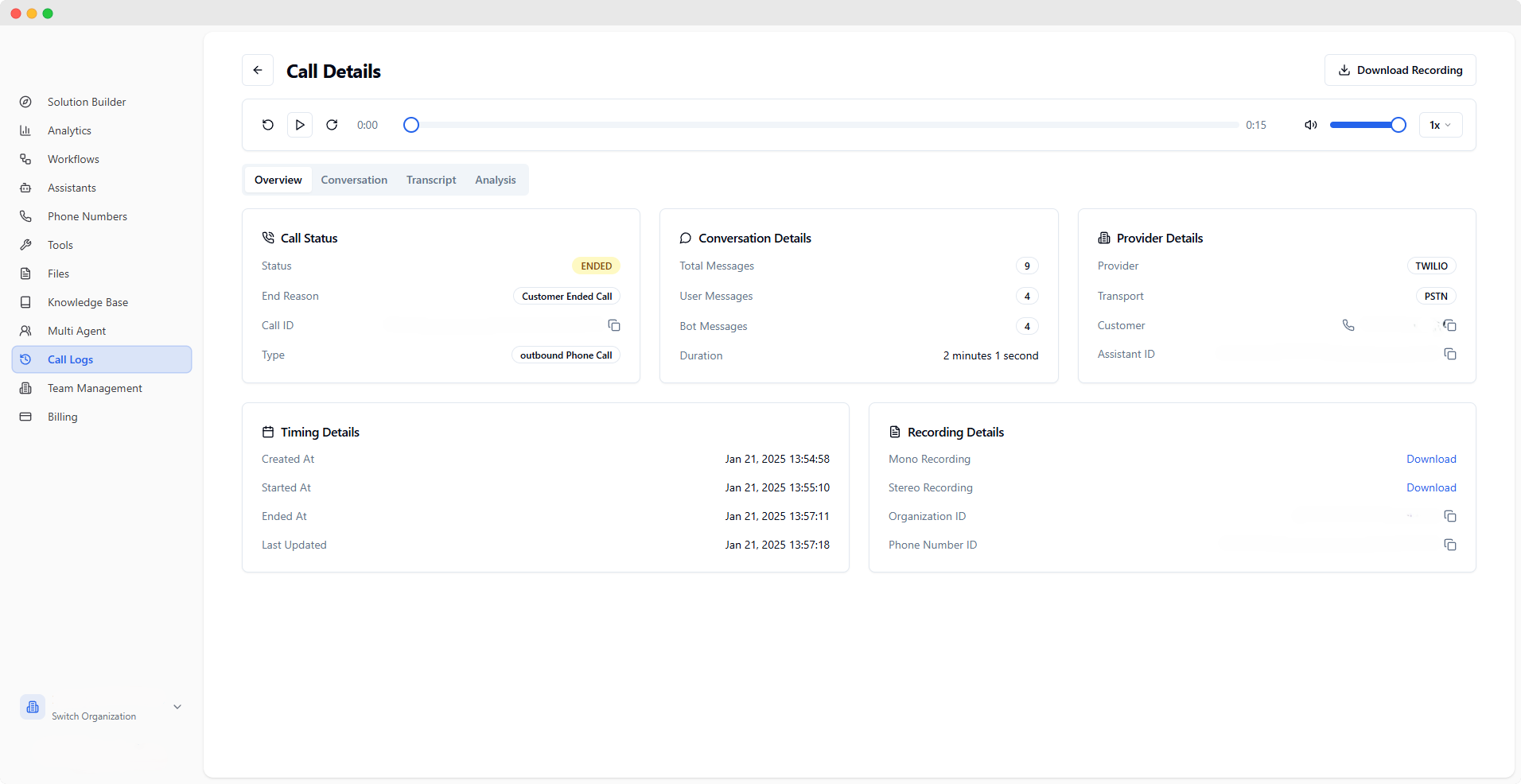 * **Status:** Current call state (e.g., ENDED)
* **End Reason:** Why the call terminated
* **Call ID:** Unique identifier
* **Type:** Call direction (inbound/outbound)
* **Total Messages:** Message count
* **User/Bot Messages:** Message breakdown
* **Duration:** Call length
* **Provider:** Service provider (e.g., TWILIO)
* **Transport:** Connection type
* **Customer:** Customer phone number
* **Assistant ID:** Associated assistant
* **Created At:** Call creation time
* **Started At:** Call start time
* **Last Updated:** Latest update time
* **Status:** Current call state (e.g., ENDED)
* **End Reason:** Why the call terminated
* **Call ID:** Unique identifier
* **Type:** Call direction (inbound/outbound)
* **Total Messages:** Message count
* **User/Bot Messages:** Message breakdown
* **Duration:** Call length
* **Provider:** Service provider (e.g., TWILIO)
* **Transport:** Connection type
* **Customer:** Customer phone number
* **Assistant ID:** Associated assistant
* **Created At:** Call creation time
* **Started At:** Call start time
* **Last Updated:** Latest update time
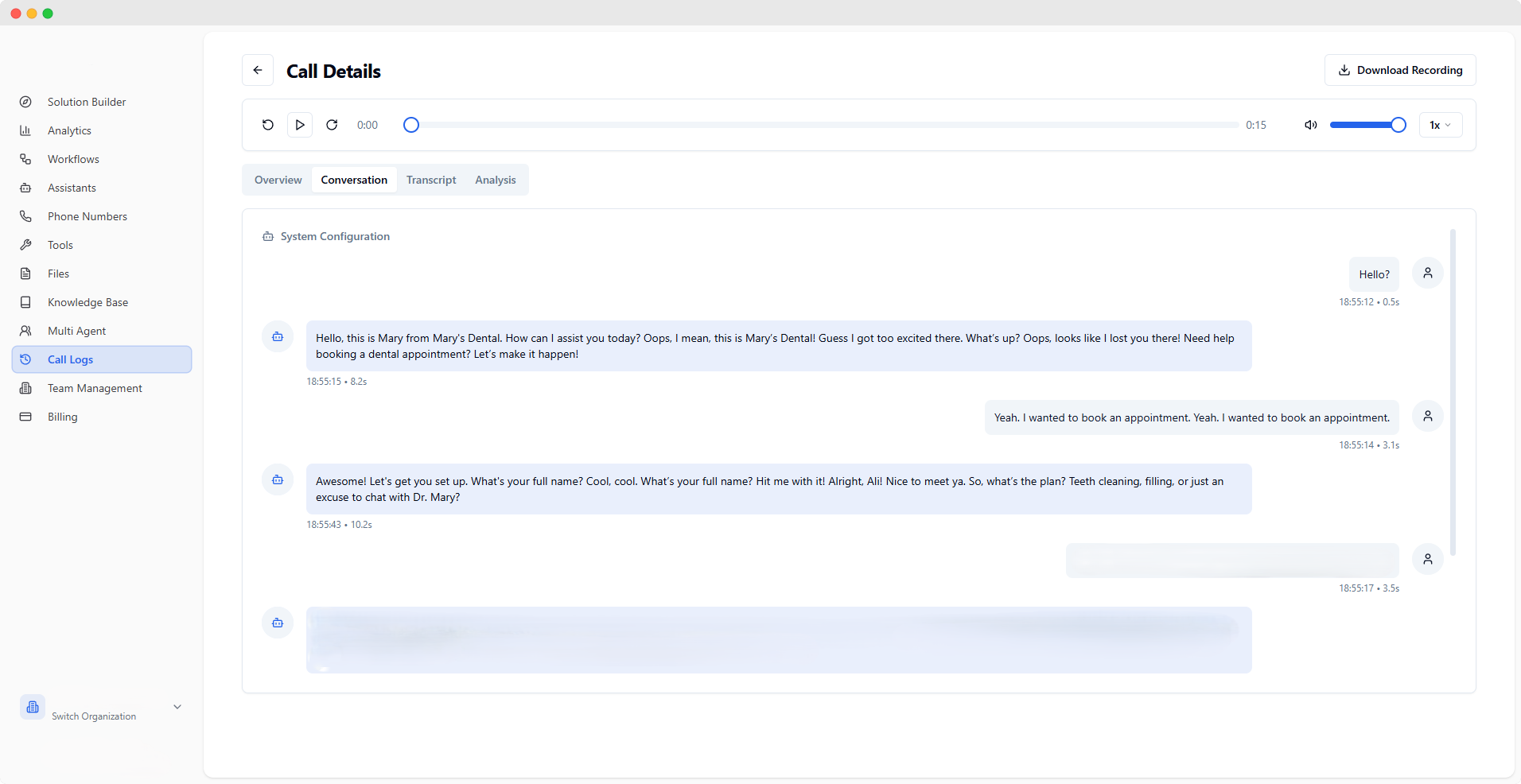 View the complete conversation in a chat-like format:
* System configuration at the top
* Chronological message flow
* Clear speaker identification
* Timestamp for each message
View the complete conversation in a chat-like format:
* System configuration at the top
* Chronological message flow
* Clear speaker identification
* Timestamp for each message
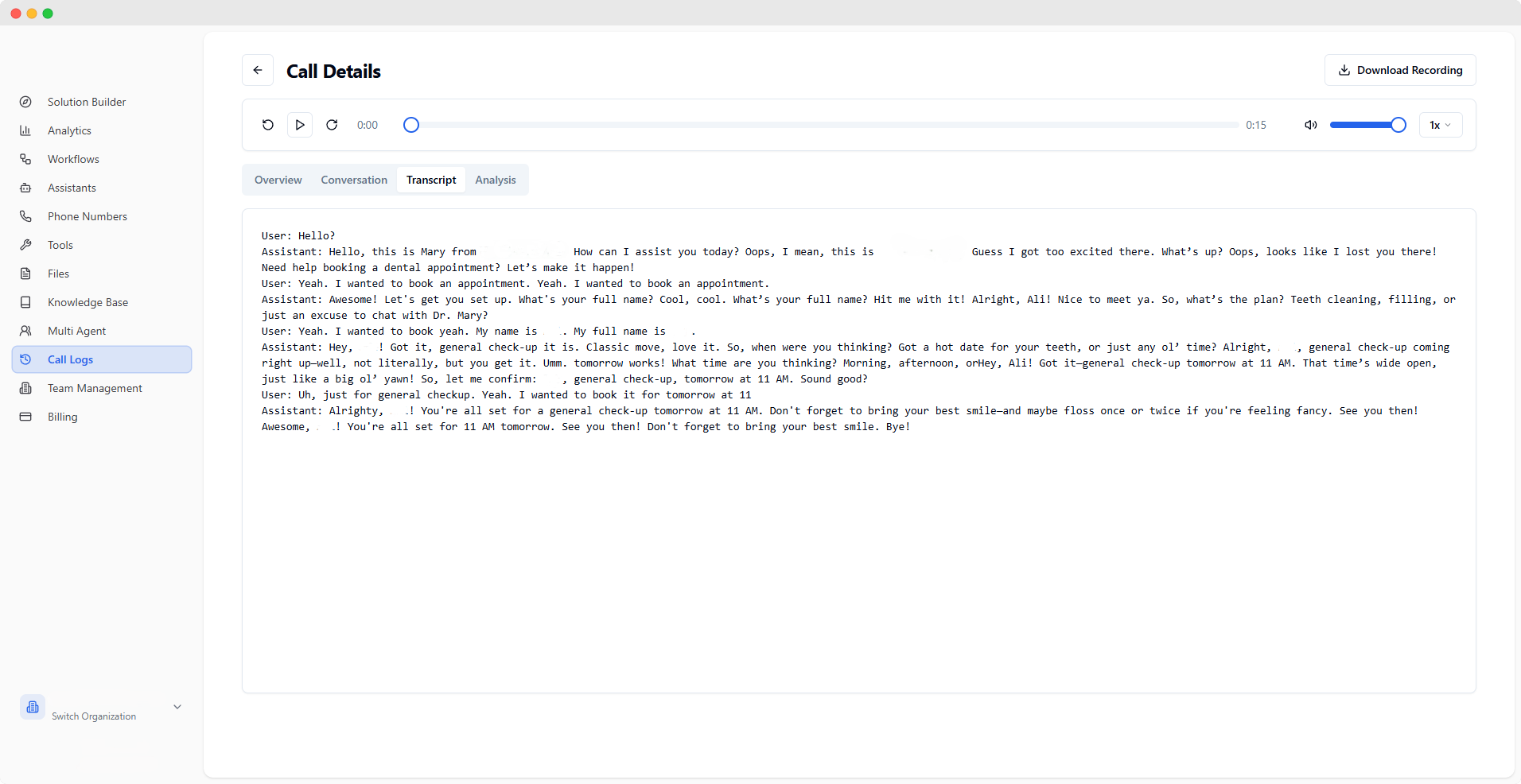 Alternative view of the conversation:
* Clean, copyable format
* Linear conversation flow
* Simplified presentation
* Easy to export
Alternative view of the conversation:
* Clean, copyable format
* Linear conversation flow
* Simplified presentation
* Easy to export
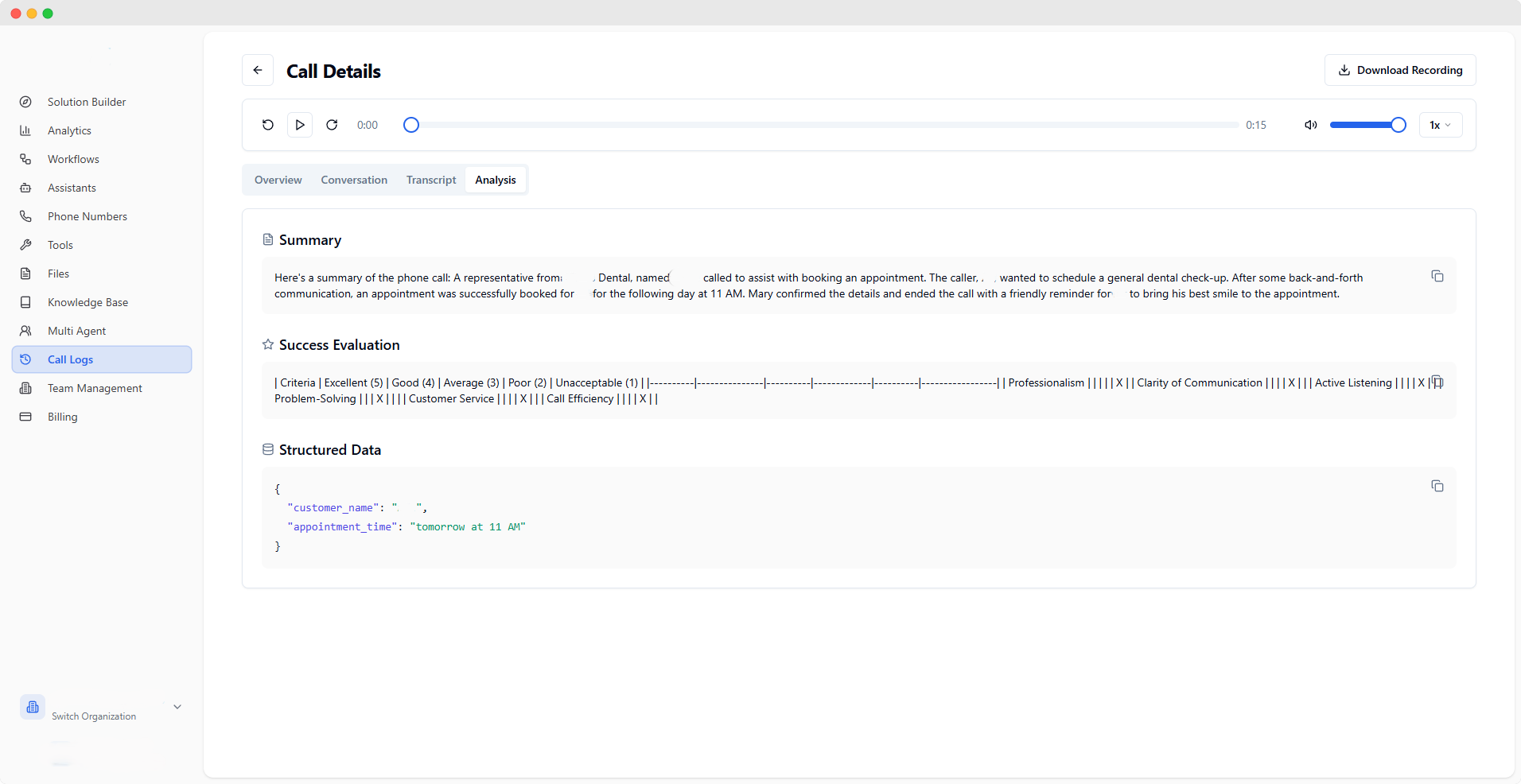 View AI-generated analysis based on your assistant's configuration:
* Call summary
* Success evaluation
* Extracted data points
* Custom analytics
The analysis tab content depends on the analysis prompts configured in your assistant's settings. Visit [Assistants](/quickstart/assistants) to configure analysis settings.
## Best Practices
1. **Regular Monitoring**
* Review calls periodically
* Track success patterns
* Identify improvement areas
2. **Data Analysis**
* Use filters effectively
* Export important data
* Monitor key metrics
3. **Quality Assurance**
* Listen to recordings
* Review transcripts
* Analyze AI performance
View AI-generated analysis based on your assistant's configuration:
* Call summary
* Success evaluation
* Extracted data points
* Custom analytics
The analysis tab content depends on the analysis prompts configured in your assistant's settings. Visit [Assistants](/quickstart/assistants) to configure analysis settings.
## Best Practices
1. **Regular Monitoring**
* Review calls periodically
* Track success patterns
* Identify improvement areas
2. **Data Analysis**
* Use filters effectively
* Export important data
* Monitor key metrics
3. **Quality Assurance**
* Listen to recordings
* Review transcripts
* Analyze AI performance