> ## Documentation Index
> Fetch the complete documentation index at: https://docs.voicebot.studio/llms.txt
> Use this file to discover all available pages before exploring further.
# Multi-Agent
> Create and manage complex AI assistant workflows
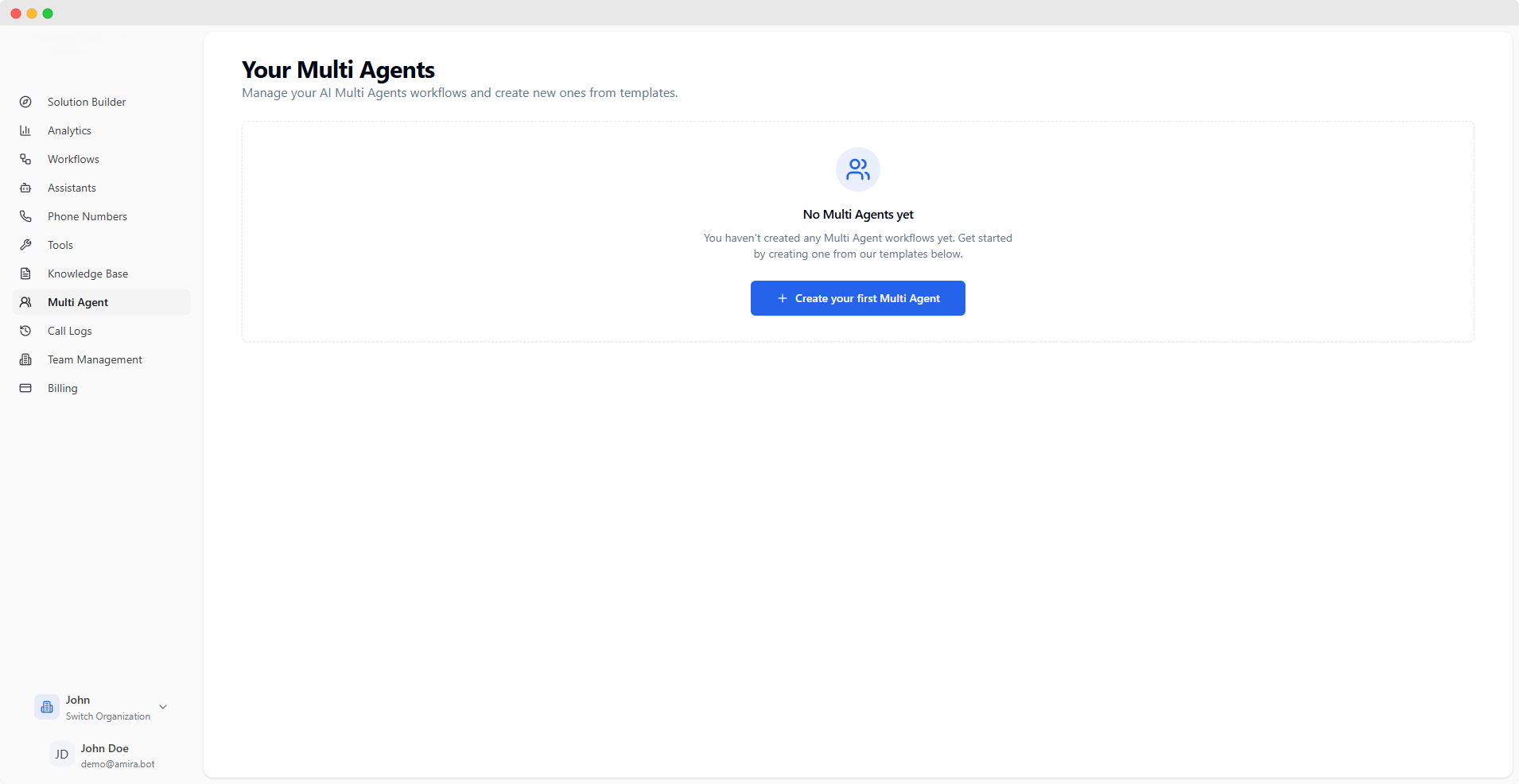 ## Multi Agent Workflows
Create sophisticated conversation flows by connecting multiple AI assistants. Each Multi Agent workflow allows assistants to collaborate and transfer conversations based on specific conditions.
You need at least two assistants to create a Multi Agent workflow. Create assistants in the [Assistants](/quickstart/assistants) section first.
## Creating a Multi Agent
## Multi Agent Workflows
Create sophisticated conversation flows by connecting multiple AI assistants. Each Multi Agent workflow allows assistants to collaborate and transfer conversations based on specific conditions.
You need at least two assistants to create a Multi Agent workflow. Create assistants in the [Assistants](/quickstart/assistants) section first.
## Creating a Multi Agent
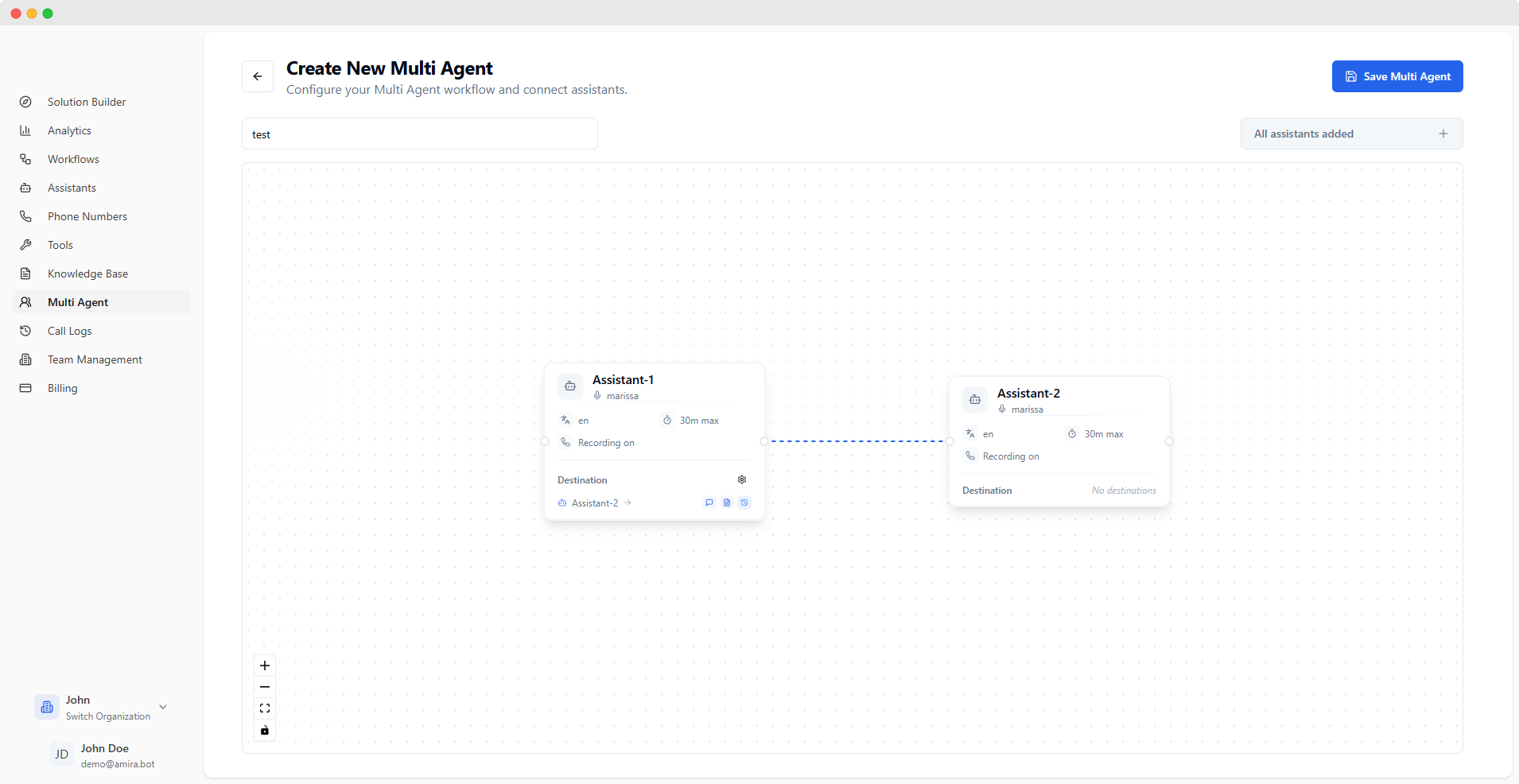 ### Basic Configuration
Give your workflow a descriptive name to identify its purpose
### Visual Builder
The visual builder allows you to:
* Add existing assistants as nodes
* Connect assistants to define conversation flow
* Configure transfer settings between assistants
**Best Practices:**
* Start with a clear entry point
* Create logical conversation paths
* Consider fallback scenarios
* Test different conversation flows
## Transfer Configuration
### Basic Configuration
Give your workflow a descriptive name to identify its purpose
### Visual Builder
The visual builder allows you to:
* Add existing assistants as nodes
* Connect assistants to define conversation flow
* Configure transfer settings between assistants
**Best Practices:**
* Start with a clear entry point
* Create logical conversation paths
* Consider fallback scenarios
* Test different conversation flows
## Transfer Configuration
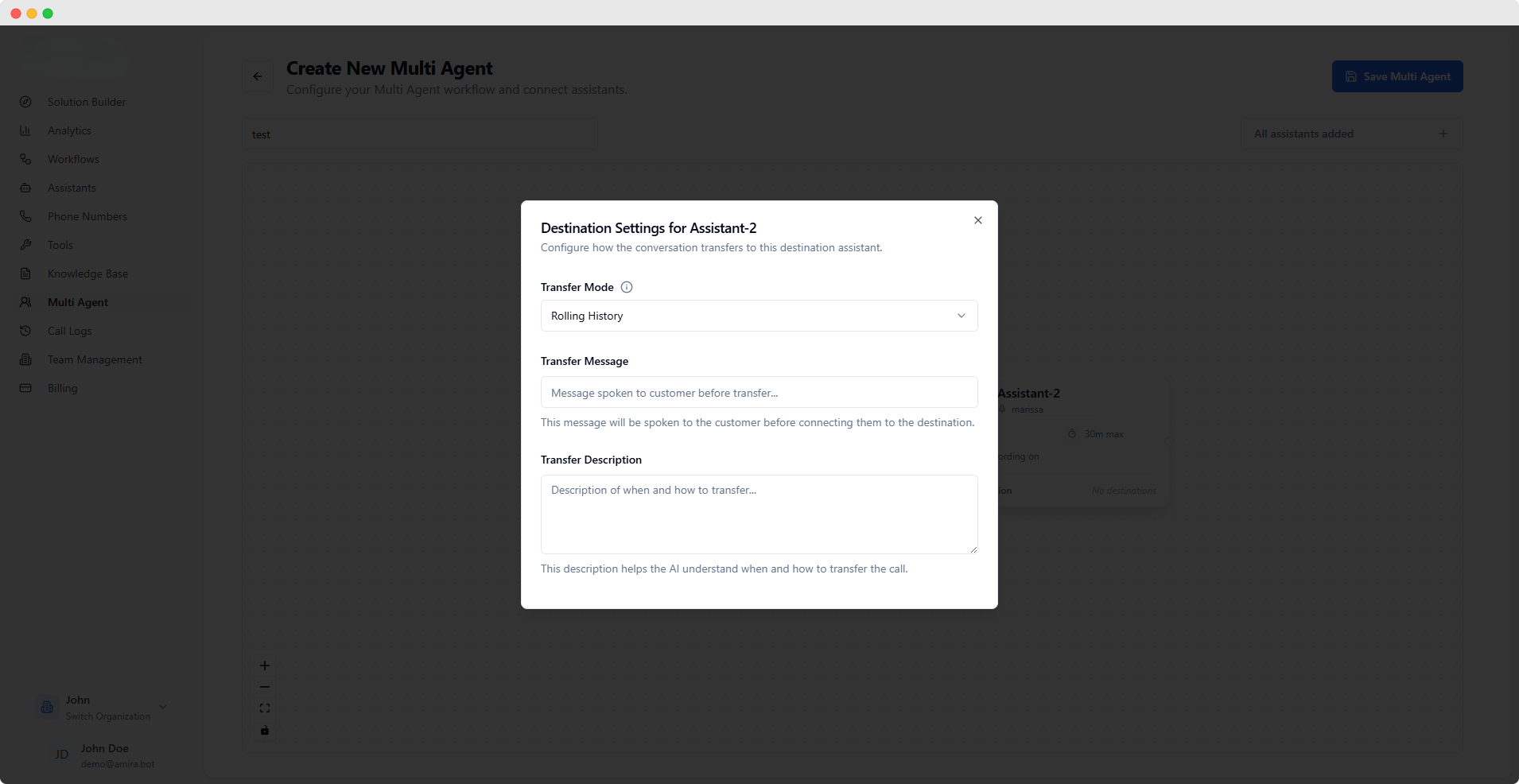 When connecting assistants, configure how conversations transfer between them:
Choose how conversation history is handled:
* **Rolling History**
Maintains complete conversation context by keeping the entire history and adding the new assistant's system message.
* **Swap System Message**
Preserves conversation flow while updating context by replacing the original system message with the new assistant's message.
* **Delete History**
Starts fresh by clearing previous conversation history when transferring.
Message spoken to the customer before transfer
Example: "I'll connect you with our technical specialist..."
Help the AI understand when and how to transfer calls
Example: "Transfer to this assistant when customer needs technical support with API integration issues."
Transfer settings are only available for assistants that have outgoing connections to other assistants in the workflow.
## Best Practices
1. **Workflow Design**
* Plan your conversation flows beforehand
* Create clear transfer conditions
* Consider user experience during transfers
2. **Transfer Configuration**
* Use clear transfer messages
* Write specific transfer descriptions
* Choose appropriate history handling
3. **Testing**
* Test all possible conversation paths
* Verify transfer conditions
* Ensure smooth transitions between assistants
You can create multiple Multi Agent workflows for different use cases and assign them to phone numbers in the [Phone Numbers](/quickstart/phone-numbers) section.
When connecting assistants, configure how conversations transfer between them:
Choose how conversation history is handled:
* **Rolling History**
Maintains complete conversation context by keeping the entire history and adding the new assistant's system message.
* **Swap System Message**
Preserves conversation flow while updating context by replacing the original system message with the new assistant's message.
* **Delete History**
Starts fresh by clearing previous conversation history when transferring.
Message spoken to the customer before transfer
Example: "I'll connect you with our technical specialist..."
Help the AI understand when and how to transfer calls
Example: "Transfer to this assistant when customer needs technical support with API integration issues."
Transfer settings are only available for assistants that have outgoing connections to other assistants in the workflow.
## Best Practices
1. **Workflow Design**
* Plan your conversation flows beforehand
* Create clear transfer conditions
* Consider user experience during transfers
2. **Transfer Configuration**
* Use clear transfer messages
* Write specific transfer descriptions
* Choose appropriate history handling
3. **Testing**
* Test all possible conversation paths
* Verify transfer conditions
* Ensure smooth transitions between assistants
You can create multiple Multi Agent workflows for different use cases and assign them to phone numbers in the [Phone Numbers](/quickstart/phone-numbers) section.