
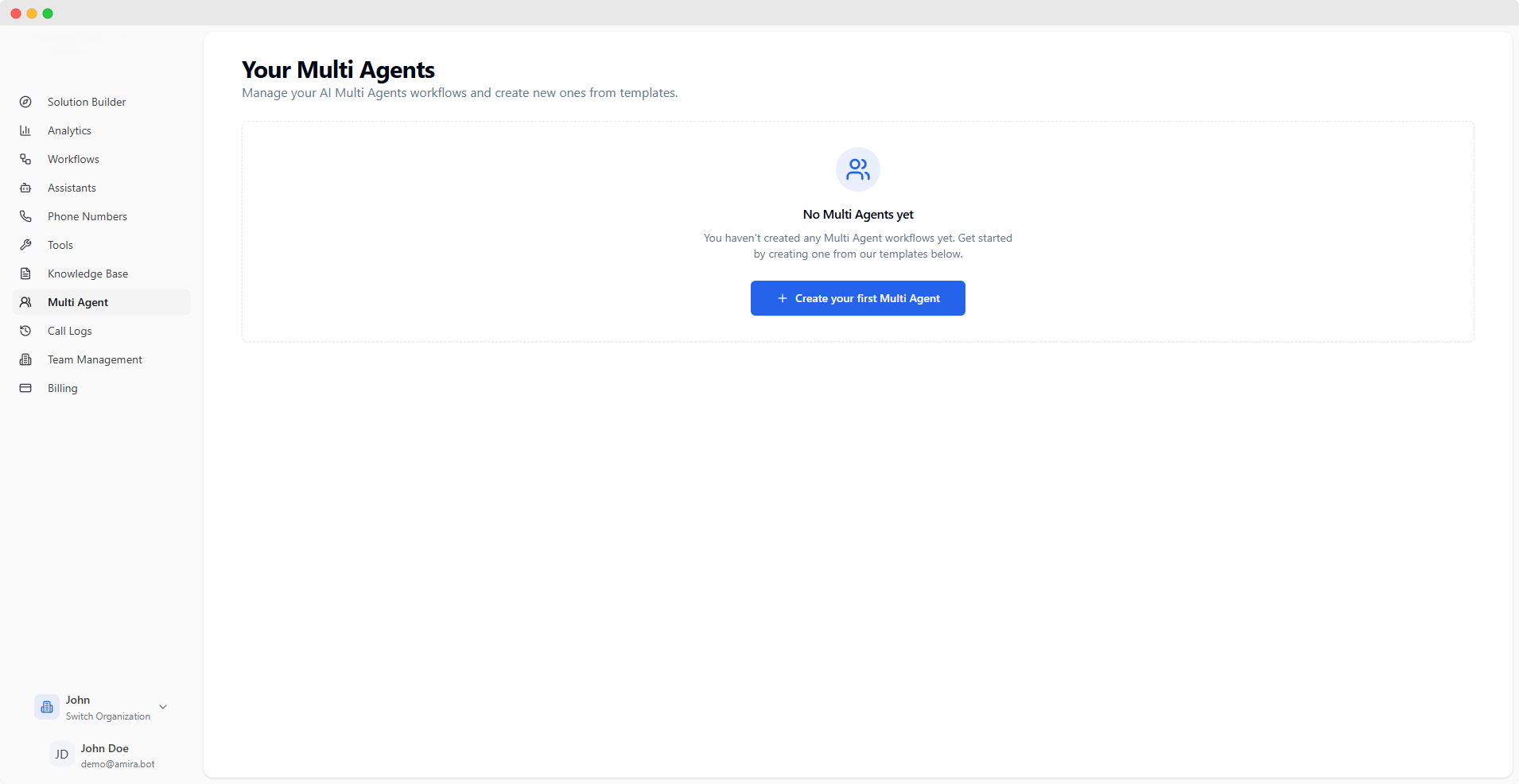
Multi Agent Workflows
Create sophisticated conversation flows by connecting multiple AI assistants. Each Multi Agent workflow allows assistants to collaborate and transfer conversations based on specific conditions.You need at least two assistants to create a Multi Agent workflow. Create assistants in the Assistants section first.
Creating a Multi Agent
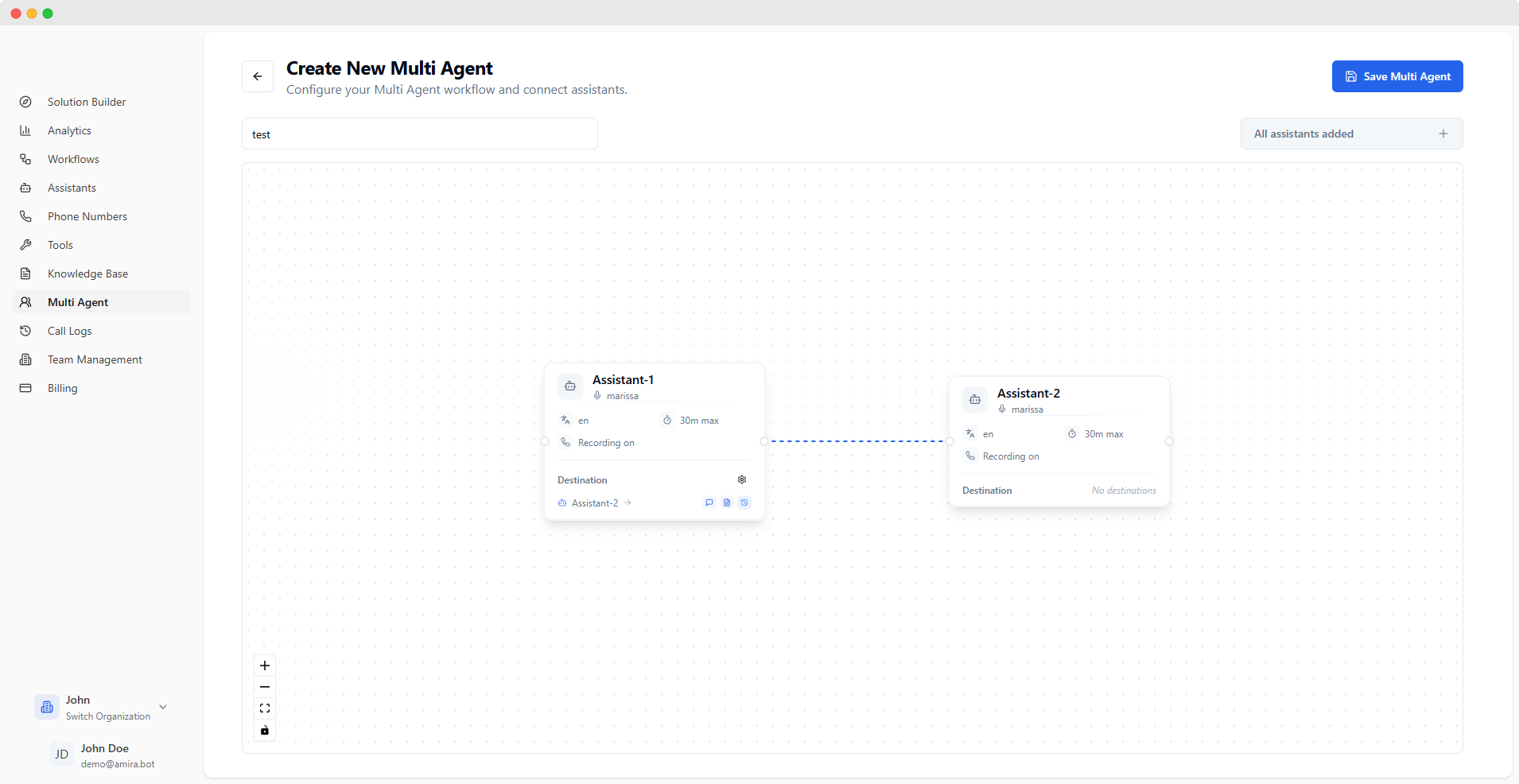
Basic Configuration
string
required
Give your workflow a descriptive name to identify its purpose
Visual Builder
The visual builder allows you to:- Add existing assistants as nodes
- Connect assistants to define conversation flow
- Configure transfer settings between assistants
- Start with a clear entry point
- Create logical conversation paths
- Consider fallback scenarios
- Test different conversation flows
Transfer Configuration
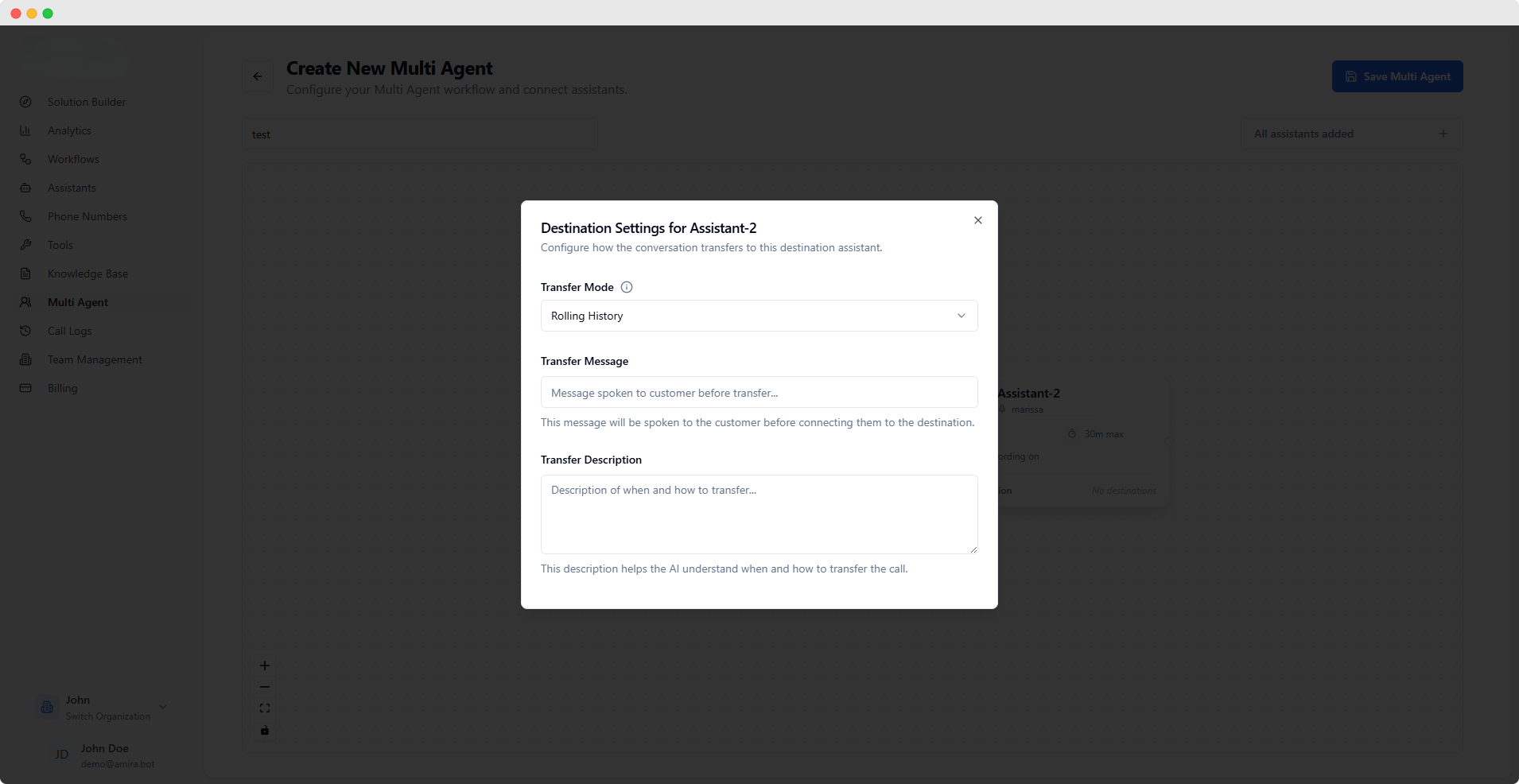
select
Choose how conversation history is handled:
- Rolling History Maintains complete conversation context by keeping the entire history and adding the new assistant’s system message.
- Swap System Message Preserves conversation flow while updating context by replacing the original system message with the new assistant’s message.
- Delete History Starts fresh by clearing previous conversation history when transferring.
string
Message spoken to the customer before transferExample: “I’ll connect you with our technical specialist…”
textarea
Help the AI understand when and how to transfer callsExample: “Transfer to this assistant when customer needs technical support with API integration issues.”
Transfer settings are only available for assistants that have outgoing connections to other assistants in the workflow.
Best Practices
-
Workflow Design
- Plan your conversation flows beforehand
- Create clear transfer conditions
- Consider user experience during transfers
-
Transfer Configuration
- Use clear transfer messages
- Write specific transfer descriptions
- Choose appropriate history handling
-
Testing
- Test all possible conversation paths
- Verify transfer conditions
- Ensure smooth transitions between assistants
You can create multiple Multi Agent workflows for different use cases and assign them to phone numbers in the Phone Numbers section.